Friday · Start
The desktop
Friday is driven like a desktop: by the arrow keys and by the mouse. Every list, grid and window follows the same few rules, so what works in one place works in all of them.
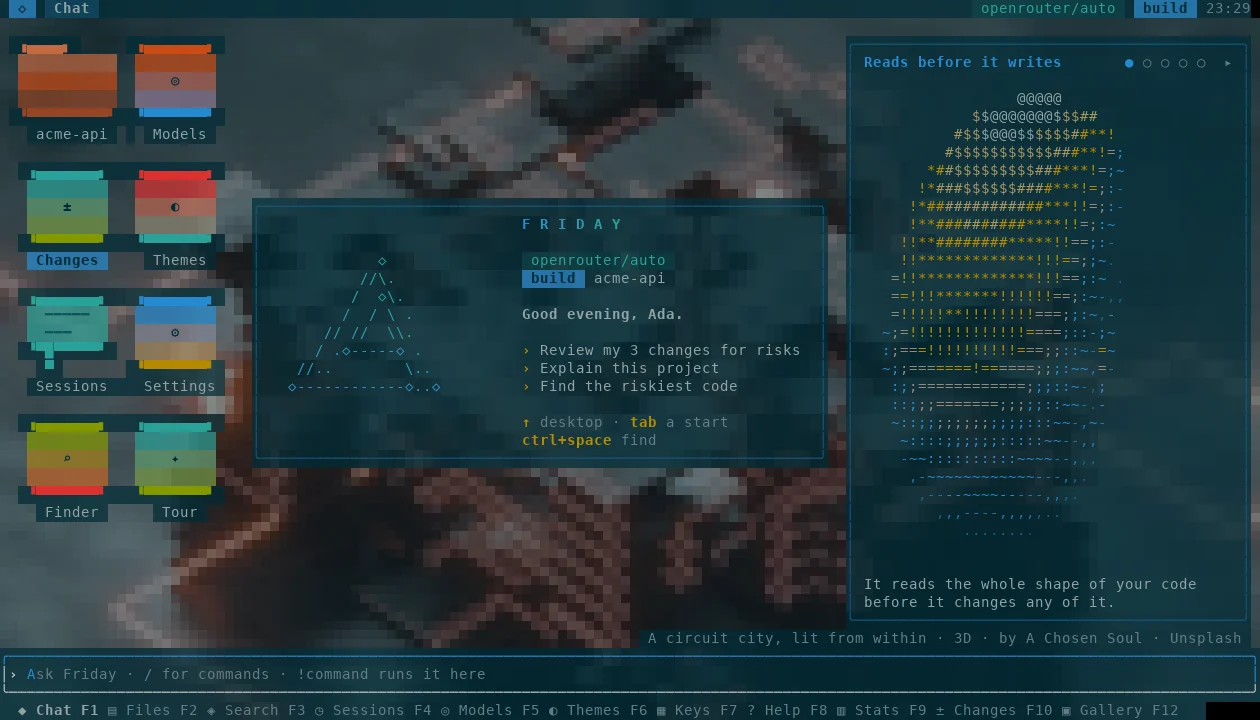
The home screen
Before the first message, the home screen is a desktop. Icons stand in columns down its left edge: the project, Changes, Sessions, the Finder, Models, Themes, Settings, Wallpaper (pick the picture behind everything) and Welcome (the first-run walkthrough again). The card in the middle says what Friday runs on and offers three requests to start from. The tour's scenes play in a panel on the right, and stay there down to a laptop's width.
- ↑ on an empty input steps onto the icons. The arrows move between them and enter opens one.
- tab puts a starter request in the input. Nothing is sent until you press enter.
- A click selects an icon, and a second click on it opens it.
- esc, ↓ past the last icon, or typing goes back to the input.
Windows
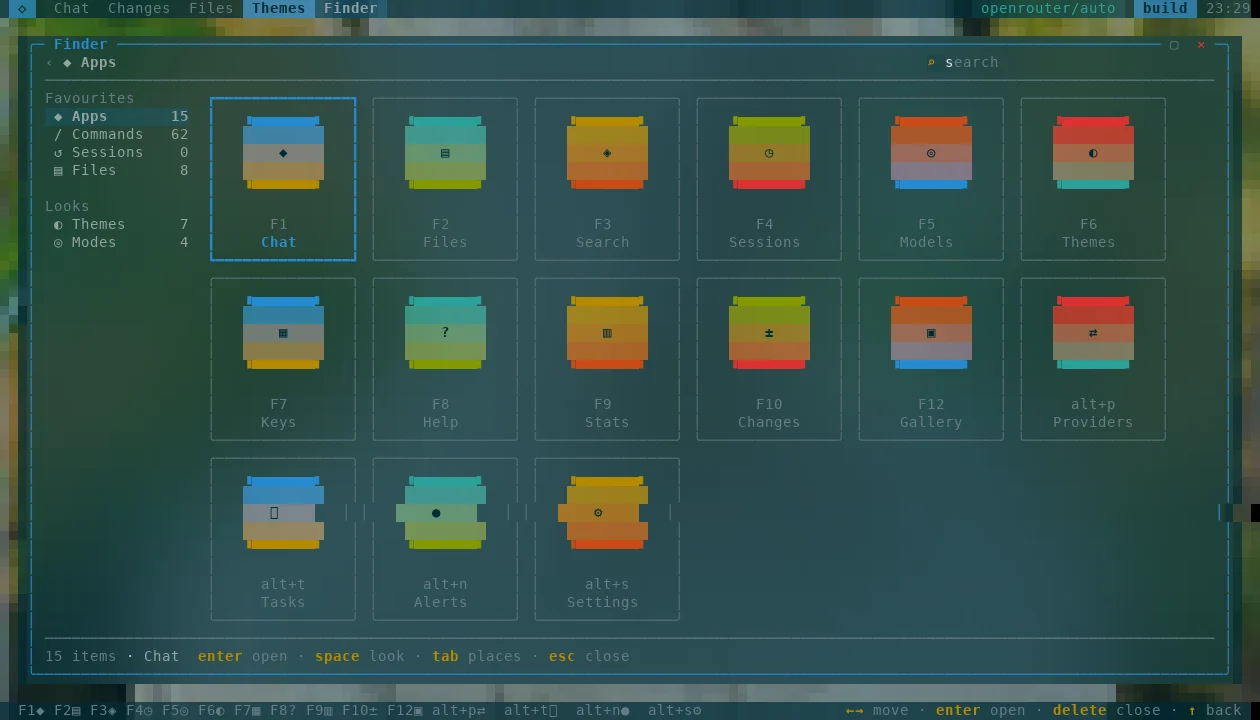
Each app opens as a window floating on the wallpaper. Its body is frosted glass: the photo behind it, blurred and tinted, so the text stays readable and the picture still shows. Its title and two buttons sit in its top edge: ▢ zooms it to the whole space between the bars, ✕ closes it. A second click on the title zooms it too.
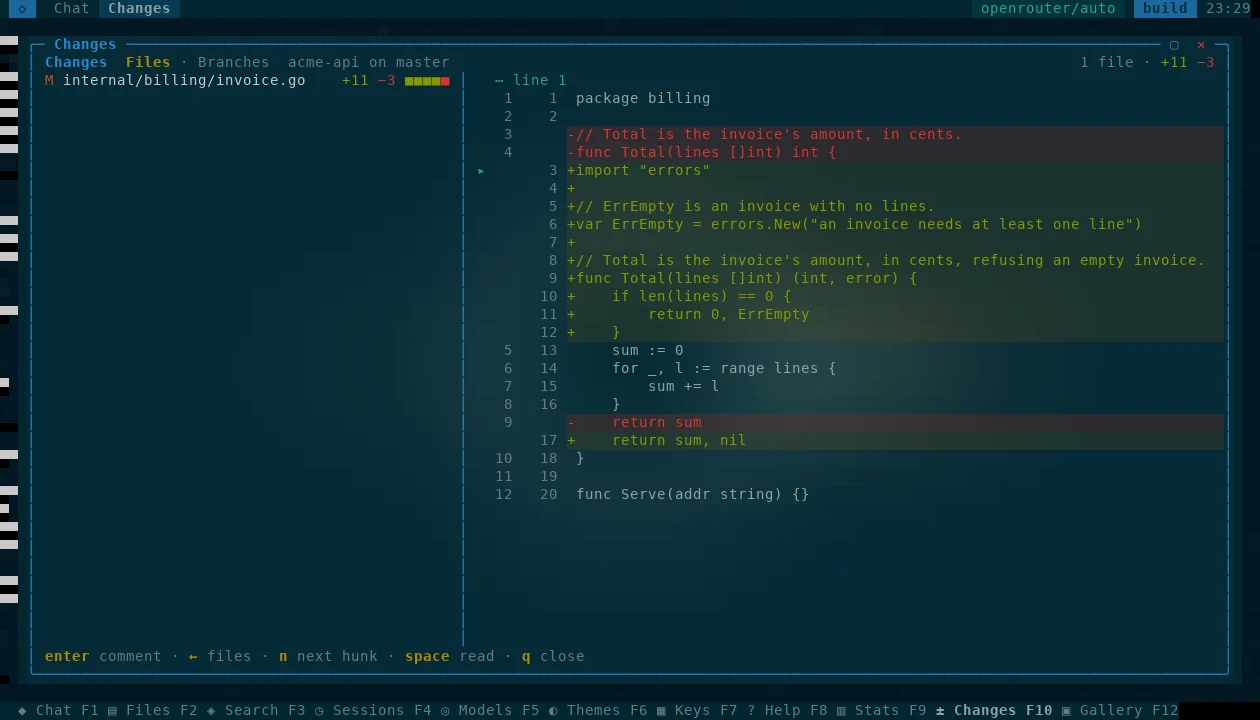
A window's keys are buttons along its foot. A click on one does what the key does, so nothing is out of reach of the mouse. Anything you browse is a window and gets a tab in the top bar: Files, Changes, Sessions, Models, Themes, the wallpaper, Help, the Finder, Settings, Providers, Stats, Tasks and Keys. A dialog is kept for a question that has to be answered first: an approval, a confirmation, connecting a provider.
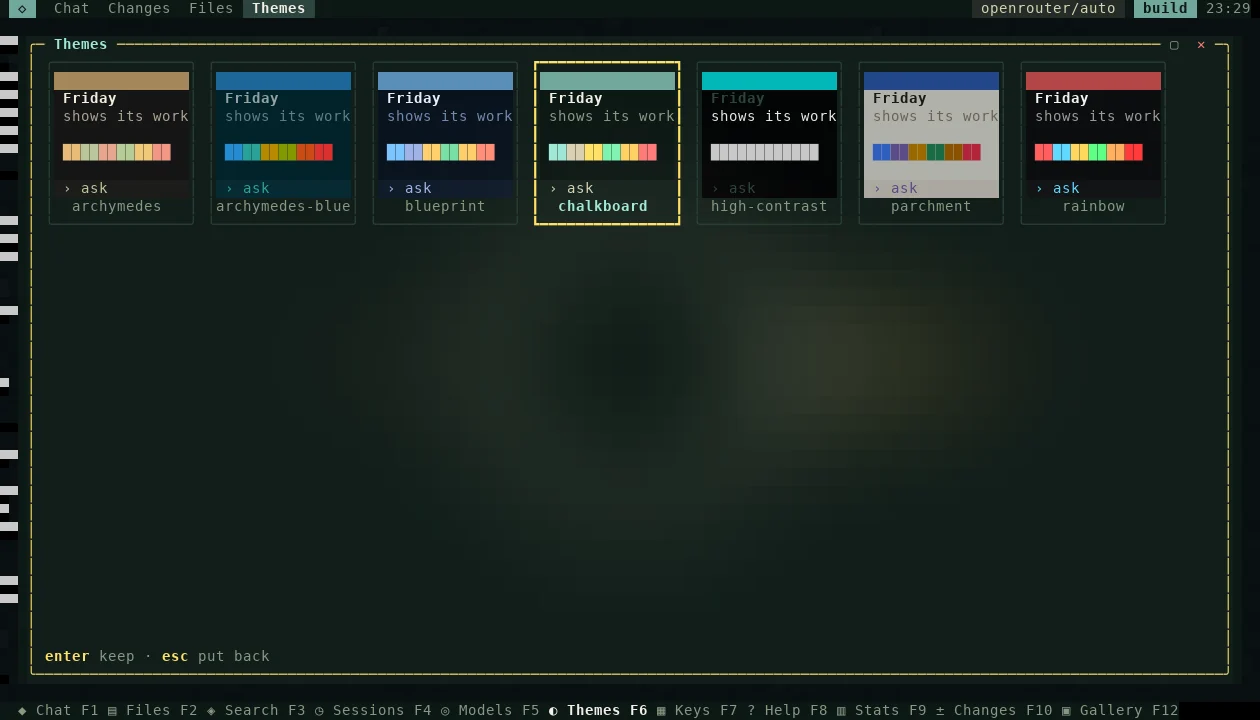
One grammar
| Input | Means |
|---|---|
| ←↑↓→ | move: a row in a list, a tile in a grid, between two panes |
| home, end, pgup, pgdn | the first, the last, a screenful |
| enter | open, or do what the selected thing does |
| space | look inside without leaving: a quick look, or a reader |
| esc | step out one level; from a window's top level or an empty input, out to the bars |
| q, ctrl+w, ✕ | close a window |
| a click | select |
| a click on the selected thing | open it, as enter does |
| a click on a button, a tab or the dock | act at once |
| the wheel | scroll what is under the pointer, never something hidden behind it |
Panes work the same way. In Changes, ← and → move between the file list and the diff; on the diff, ↑ and ↓ pick a line and enter comments on it. In Files the wheel moves through the tree on the left and scrolls the preview on the right.
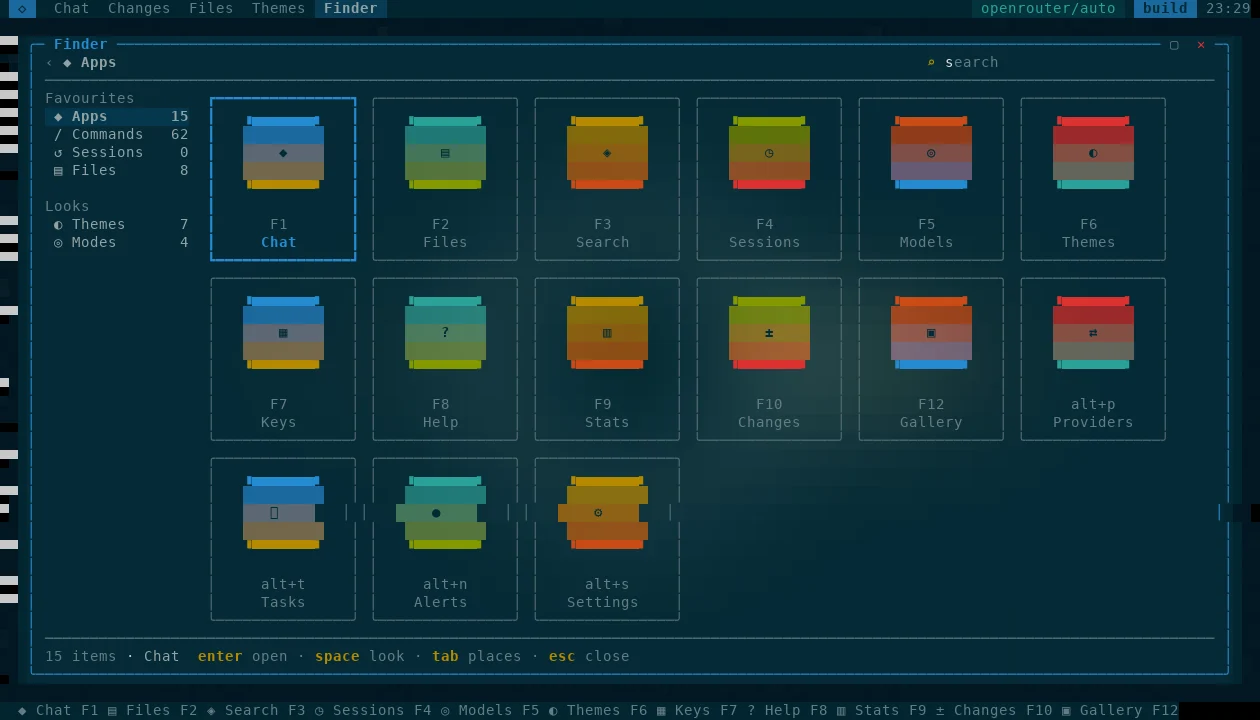
The bars
The top bar holds a tab for each open window; the dock along the bottom holds every app with its key. From a window's top level, or from an empty input in Chat, esc steps out to them, and they become one row the arrows walk along:
- ← and → move along the tabs and then the dock's apps.
- enter switches to a window or opens an app.
- delete closes the window under the cursor.
- ↑ or esc goes back into the window. Any other key goes back too, and is kept: typing is never lost on the way.
The conversation
In Chat, ↑ on an empty input steps onto the newest block of the conversation: what you said, what Friday said, or one of its tool calls. A bar in the margin marks it.
- ↑ and ↓ move from block to block, and the view follows.
- enter on a tool call shows its whole output, and enter again folds it. On a message it opens a reader.
- space reads any block in a reader, where it can be searched and copied.
- ↓ past the newest block, esc, or typing goes back to the input.
Earlier messages, which ↑ recalled before, are ctrl+↑ and ctrl+↓.
Keys worth knowing
| Key | Does |
|---|---|
| ctrl+space | the start menu: find any app, action, session or file by typing |
| alt+g | the Finder |
| F1 to F10, F12 | the dock's apps, from Chat to the Gallery |
| shift+tab | the next mode |
| alt+1, alt+2, alt+3 | take a suggested next step |
| alt+w | the first-run walkthrough again |
| F7 | the Keys app, where any key can be changed |
Written for this site · the source